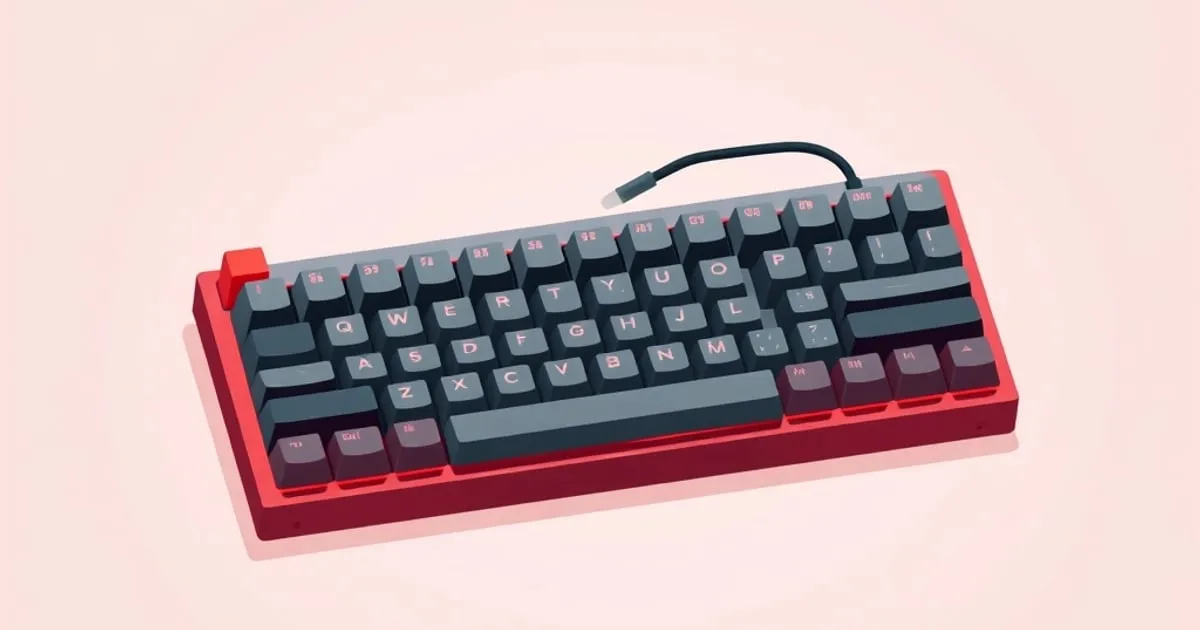
Build Your First Custom Mechanical Keyboard: Full Walkthrough
A start-to-finish guide to assembling your first hot-swap custom keyboard — parts list, the correct assembly order, the mistakes that brick a build, and a
Building a keyboard sounds intimidating until you do it once, after which it seems obvious. This guide is the walkthrough for a first build using a hot-swap kit — no soldering, the right path for almost everyone’s first assembly. If you’re still deciding whether to build at all, the first keyboard buying guide covers prebuilt versus kit; this assumes you’ve chosen the kit route.
What “custom build” means here
We are specifically describing a hot-swap barebones kit: a case, plate, PCB with hot-swap sockets, and stabilizers, sold assembled or near-assembled, to which you add switches and keycaps. This is not the solder-everything-from-loose-parts path. That fuller path exists, but it is not a first build, and nothing here requires a soldering iron.
Parts list
A complete first build needs exactly four things:
- A hot-swap kit — case, plate, PCB, usually with stabilizers included or sold alongside. Confirm it explicitly says “hot-swap.”
- Switches — enough for your layout plus a few spares. A ~75% board needs roughly 84; buy 90+. Choose the family deliberately using the switch guide.
- Keycaps — a set that covers your exact layout. Verify kit coverage with the keycaps guide; a missing modifier size ruins the set.
- Tools — keycap puller and switch puller (often included with the kit), plus optionally stabilizer grease.
That’s it. No iron, no flux, no multimeter for a hot-swap build.
The correct assembly order
Order matters. Doing stabilizers after switches, or testing too late, causes most first-build frustration.
Step 1: Tune and install stabilizers first
Stabilizers go in before switches, because they mount to the PCB/plate in positions that switches would block. This is also the moment to tune them — they are never accessible this easily again. Lube and (if applicable) clip them now, following the stabilizer guide. Skipping this step is the single most common build regret: a rattly spacebar you have to half-disassemble the finished board to fix.
Seat each stabilizer fully. A stabilizer that isn’t fully clipped or screwed in sits high and binds the keycap later.
Step 2: Test the PCB before installing switches
Plug the bare PCB into your computer and open an online key tester (a web page that lights up keys as a switch closes the contact). Use tweezers or a single switch to bridge each socket and confirm every key registers. Finding a dead socket now is a return; finding it after 84 switches are installed is a disaster. Skipping this test to save five minutes is the highest-regret shortcut in the entire build.
Step 3: Install the corner and edge switches first
Place a switch in each corner and a few along the edges, pressing until the pins click into the socket. These anchor the plate to the PCB and keep everything aligned. Then fill in the rest, working inward.
Before each switch goes in, check that both pins are straight. A bent pin is the number-one cause of a “dead key on a brand-new build.” If a pin folds under, pull the switch, straighten the pin gently with tweezers or pliers, and reinsert. Pressing harder on a switch with a bent pin does not seat it — it hides the bent pin under the socket where you can’t see it.
Press straight down with a finger behind the socket on the PCB to avoid flexing the board around an unsupported area.
Step 4: Retest with all switches in
Plug in again and confirm every key on the tester before keycaps go on. Diagnosing a dead switch is far easier without caps.
Step 5: Install keycaps
Match the profile’s row sculpting to the correct rows (sculpted sets like Cherry have row-specific caps; uniform sets don’t — see the keycaps guide). Press each cap straight down onto the stem. Install stabilized keys (spacebar, enter, shifts) by aligning the stabilizer stems and the central switch simultaneously, pressing gently across the whole cap.
The mistakes that brick a build
In rough order of frequency:
- Bent switch pins. Always inspect both pins before insertion. By far the most common dead-key cause.
- Skipping the bare-PCB test. Turns a five-minute return into a full teardown.
- Stabilizers installed untuned. A rattly board you must disassemble to fix.
- Stabilizers not fully seated. Causes mushy or sticking wide keys.
- Forcing a keycap onto a misaligned stabilizer. Can crack the keycap stem.
- Static and force. Press the PCB gently and support it from behind; don’t flex an unsupported board.
None of these require special skill to avoid. They require checking before committing — the recurring theme of every successful first build.
Realistic difficulty and time
A first hot-swap build is genuinely beginner-appropriate. There is no soldering, no firmware flashing required to get a working keyboard (most kits ship with usable firmware), and no irreversible step if you test as you go.
Budget about 1–2 hours for a first build, the bulk of it on stabilizer tuning and careful switch insertion. The actual snapping-in of switches is fast; the parts worth slowing down for are stabilizer tuning and pin inspection.
After it’s built
A freshly assembled board usually still benefits from two refinements: confirm the stabilizers are quiet under real typing, and if the sound is thin, that’s a keycap or foam question, not a rebuild. If a single key fails, start with the troubleshooting guide — it’s almost always a bent pin or an unseated switch, both two-minute fixes.
What to do next
- Buy a kit that explicitly states hot-swap, plus switches (10% spares) and a layout-matched keycap set.
- Tune stabilizers, then test the bare PCB, then install switches — in that order, no shortcuts.
- Inspect both pins on every switch before it goes in.
- Retest before keycaps; diagnose without caps if anything fails.
That’s a complete first build. For the decisions that precede it, browse all our mechanical keyboard guides.
Related

Hot-Swap vs Soldered Keyboards: Which Should You Buy?
A clear comparison of hot-swap and soldered mechanical keyboards — what each actually means, the real tradeoffs in cost, durability, and flexibility, and

How to Choose Your First Mechanical Keyboard the Smart Way
A no-hype framework for buying your first mechanical keyboard: prebuilt vs hot-swap vs kit, the four decisions that matter, and the upgrade traps that

How to Find Your Switch Preference With a Switch Tester
A practical method for discovering which mechanical switch you actually like — how to use a switch tester properly, why first impressions mislead, and how